
EBS 볼륨 추가하기
The created EC2 instance has a root volume with enough storage capacity to support the operating system, as well as a few additional applications required for supporting the analyses. We will now need additional storage to accommodate the large datasets we are about to download (e.g. Raw reads, aligned sequences etc.). Hence we need to attach additional storage.
In this section we will:
a. Create an Elastic Block Store (EBS) volume.
b. Attach the new volume to an EC2 instance.
c. Format and mount the new volume.
1. Format the new volume with a filesystem.
2. Mount the volume and copy some data into it.
CREATE AN EBS VOLUME
-
In the AWS Management Console search bar, type EC2 to navigate to the EC2 Service.
-
On the Left Navigation Bar click on Volumes under Elastic Block Store
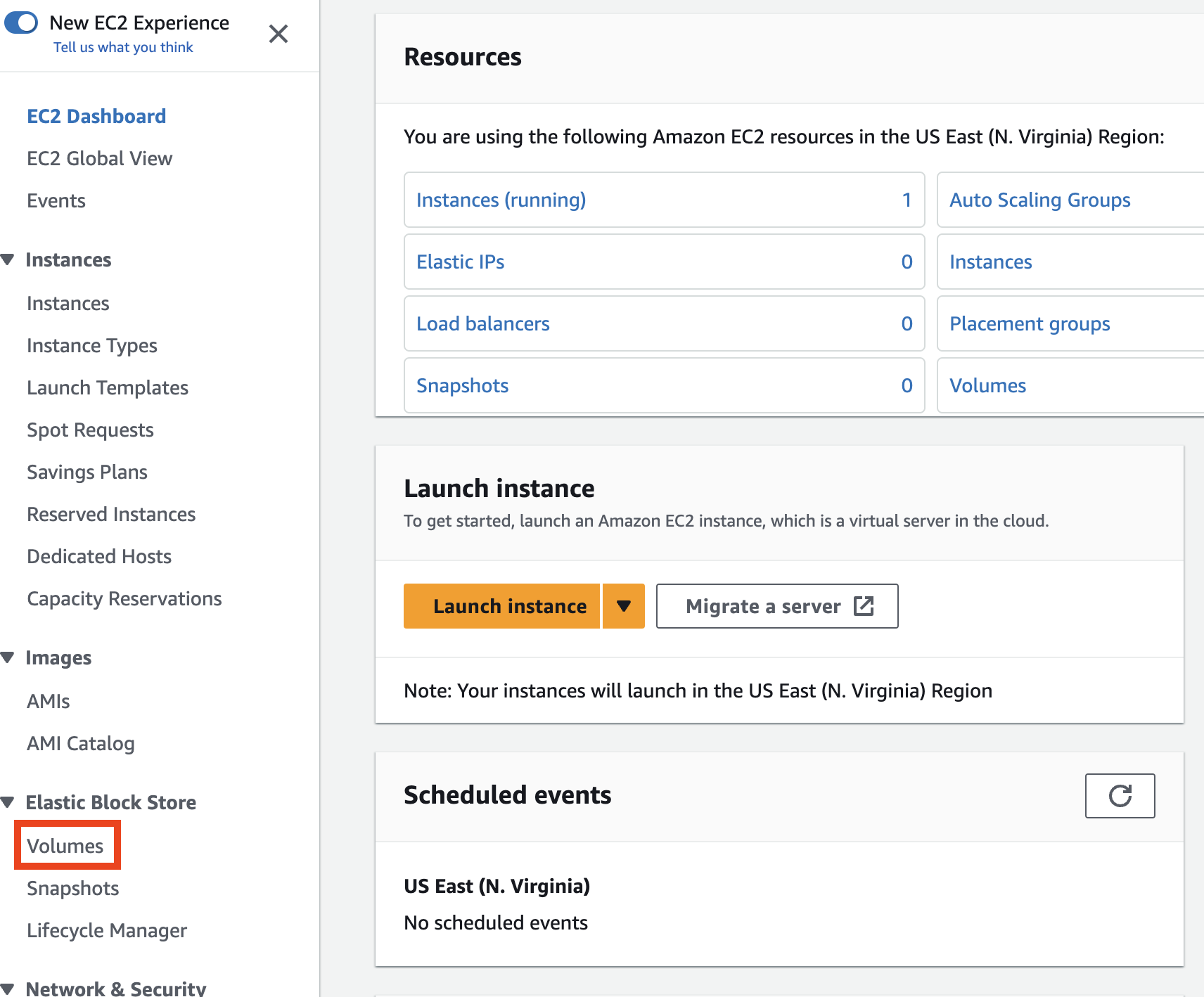
Click on Create Volume (on the top right corner) to create a new volume
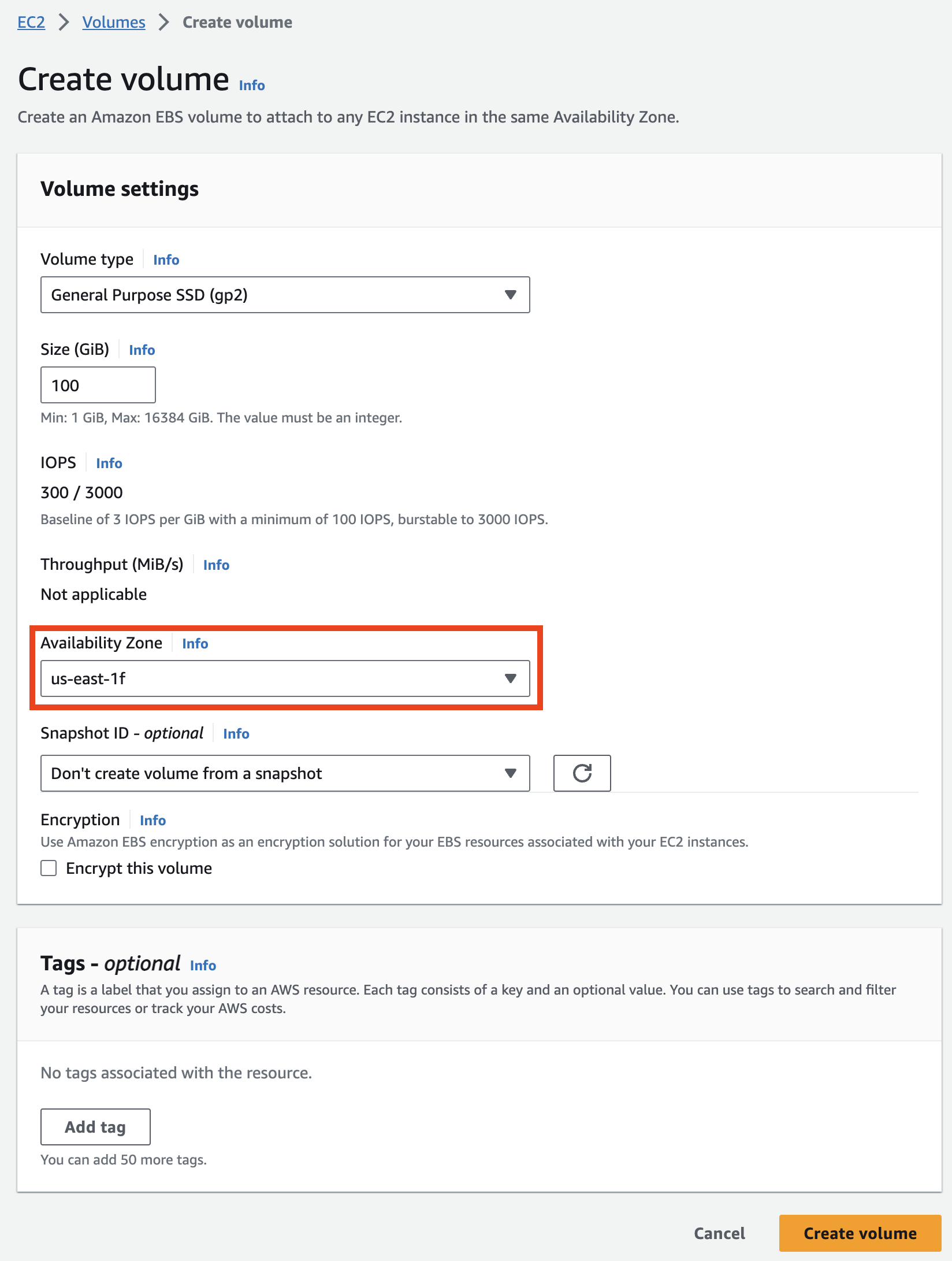
In the Create Volume page fill out the required size of the volume in GB, e.g. 10 GB or more depending on the data set size.
NOTE: For the purposes of this lab 10 GB will suffice.
Important: Make sure the Availability Zone is the same as the EC2 instance you are going to attach the volume to.

Attach an EBS Volume to a running Instance
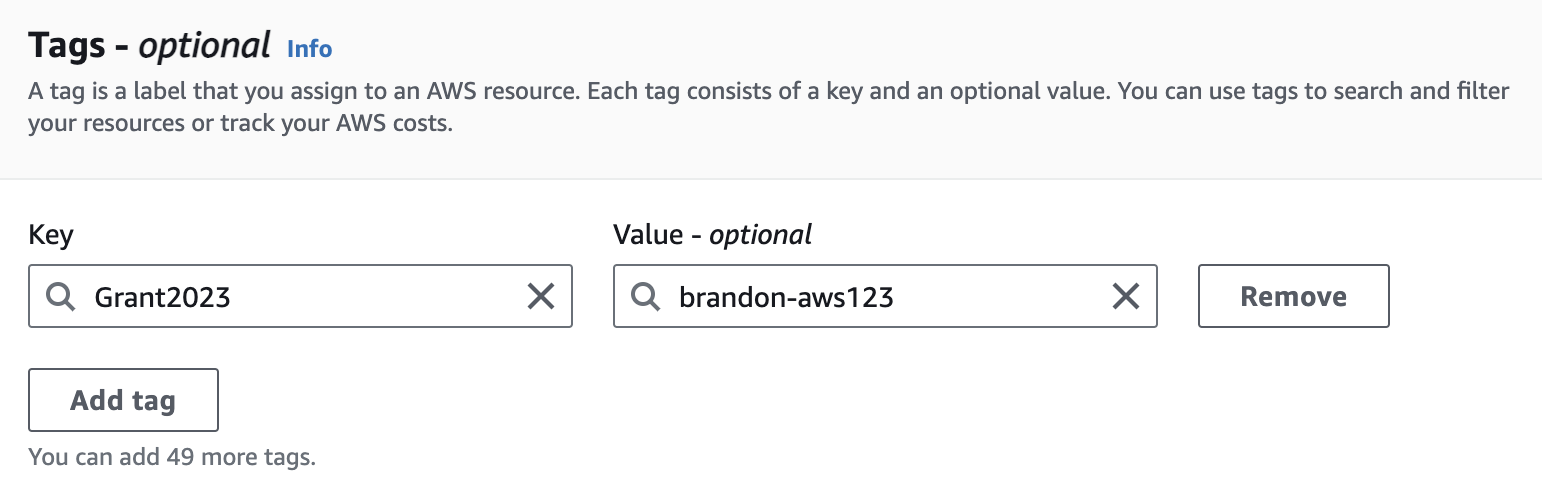
On the Left Navigation Bar click on Volumes under Elastic Block Store to view all the volumes. Select your newly created volume searching the list for the unique Name tag provided in the previous step.
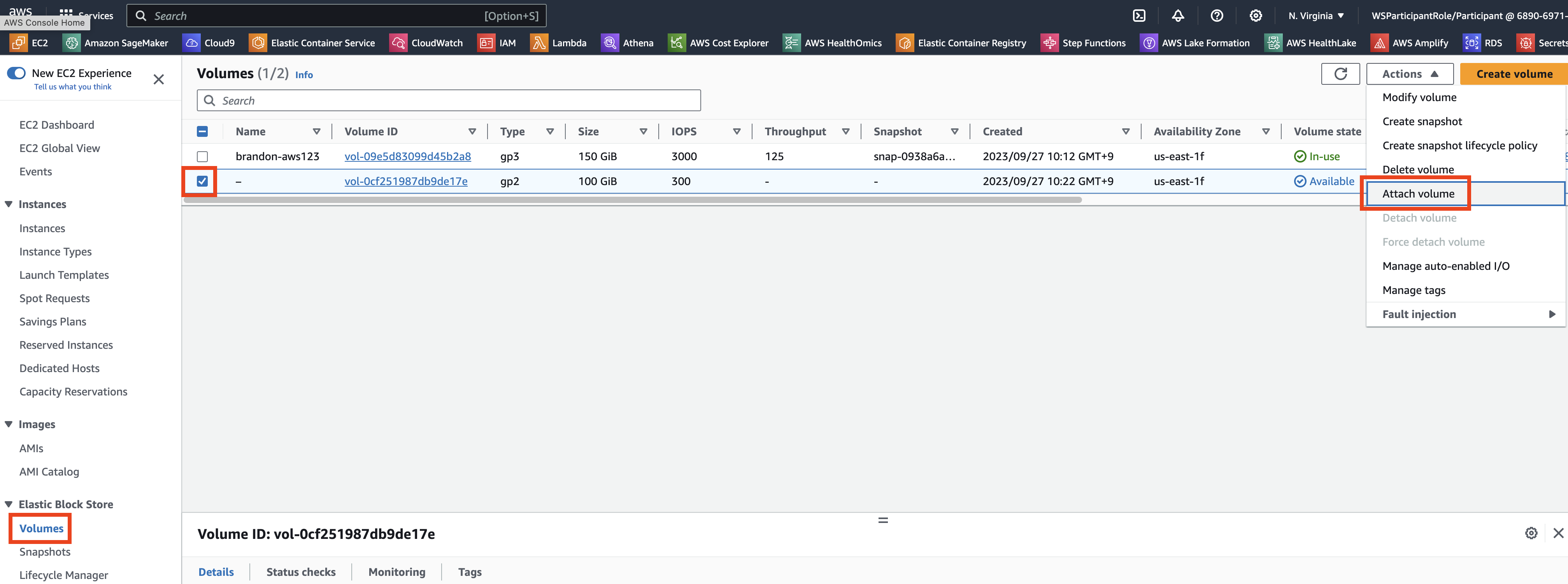
Click on Actions and further click on Attach Volume
In the Attach Volume dialog, click on the Instance field and select the EC2 instance by looking for the Instance ID or Name Tag in the list. Click Attach to attach the volume.
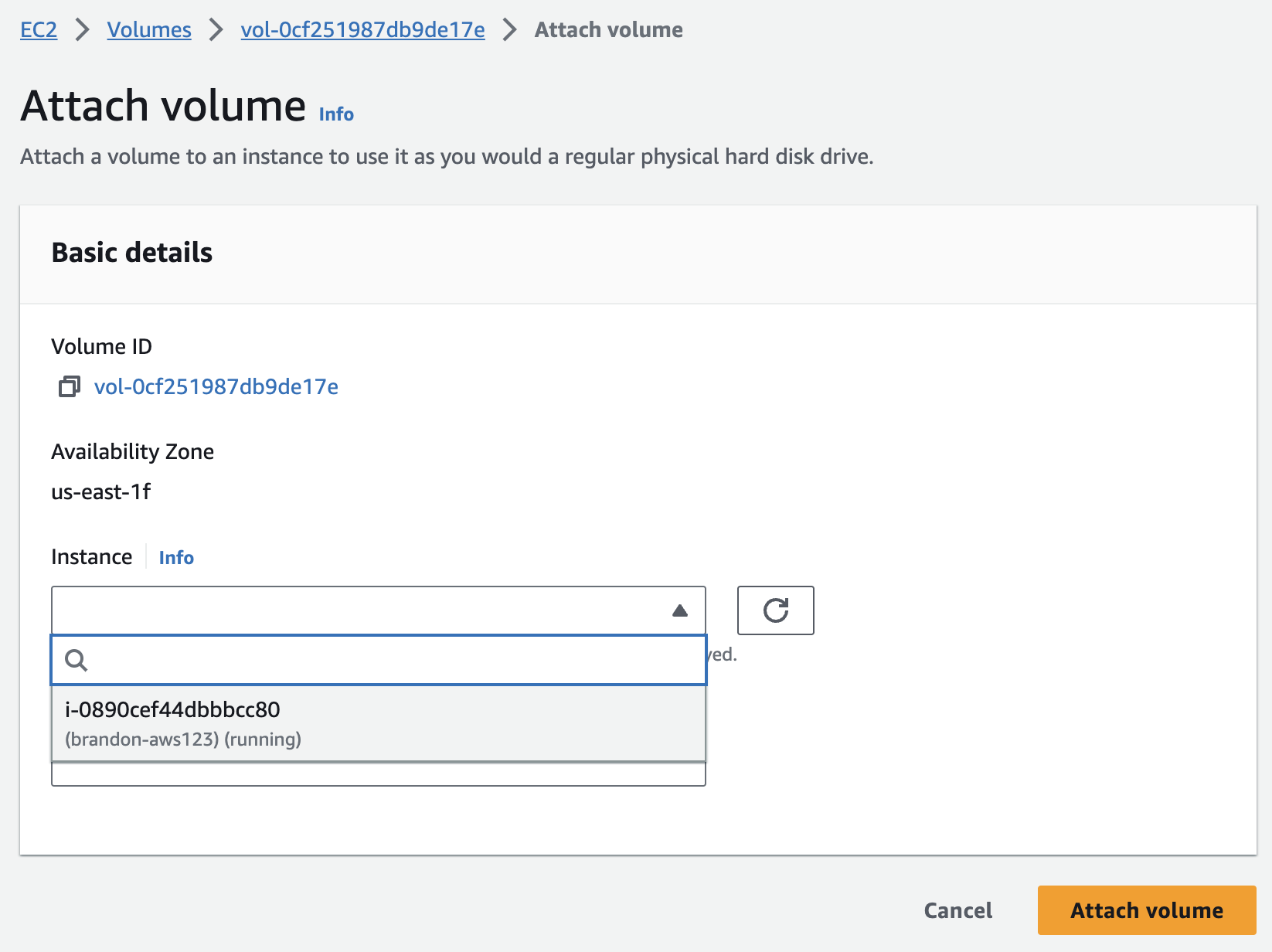
If attached successfully - In the list of displayed volumes you should see your new volume having a status (under the State Column) indicating In Use.

On the left Navigation pane click EC2 Dashboard on the very top of the list of items.
Select Instances (running) and then select your EC2 Instance from the list of instances to which you attached the Volume.
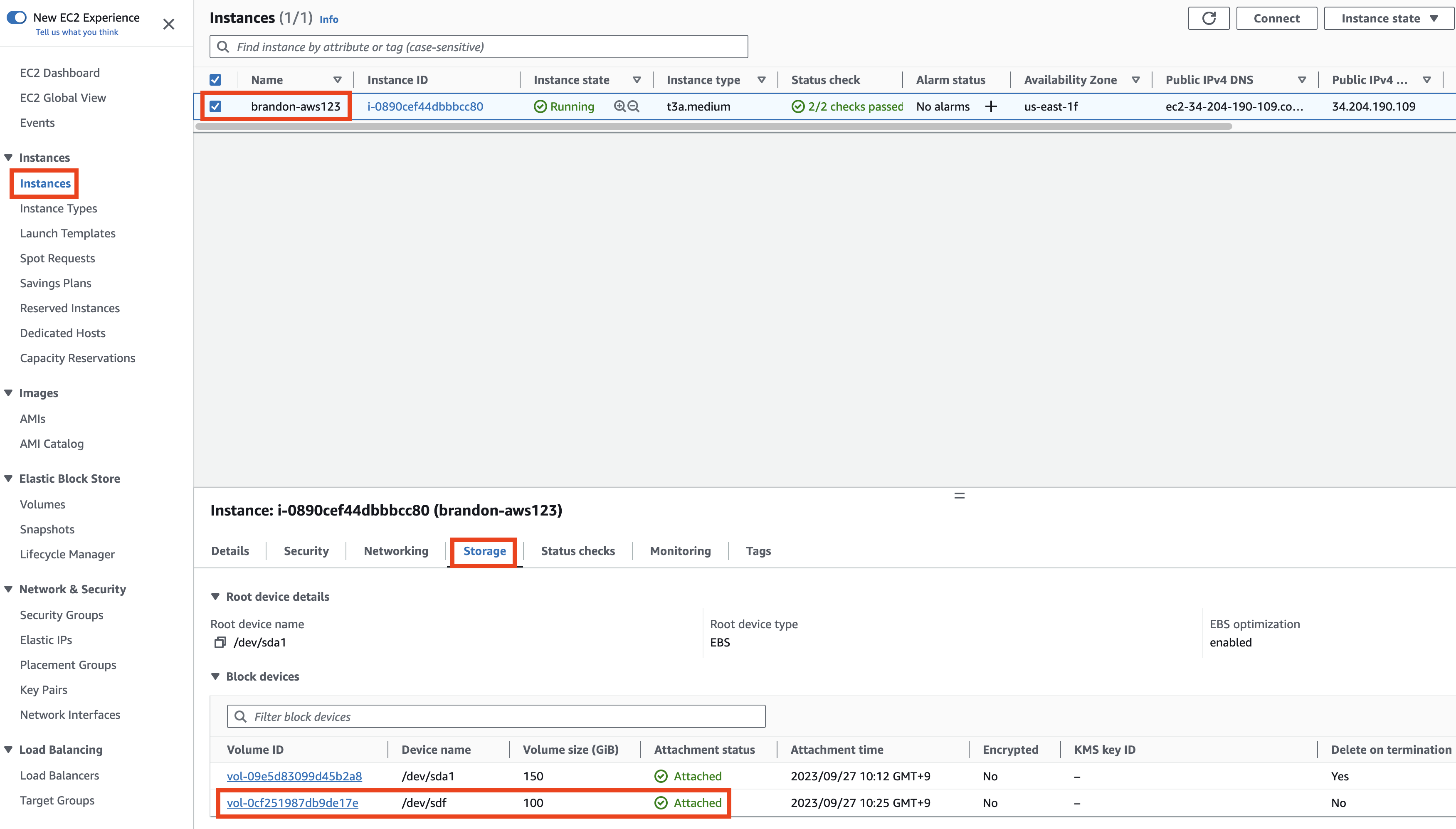
Important: Note down the specific device name for the next step of mounting the volume. The drive name may differ from what’s shown.
NOTE: Depending on the Linux version and the machine type, the device names may differ. The EC2 Console will generally show /dev/sdX, where X is a lower-case letter, but you may see /dev/xvdX or /dev/nvmeYn1. The following table may help with translating. Another way to help track is to pick different sizes for your EBS volumes (such as 151, 152, 153 GB for different volumes). | Device name (Console) | Alternate 1 | Alternate 2 | | — | — | — | | /dev/sda | /dev/xvda | /dev/nvme0n1 | | /dev/sdb | /dev/xvdb | /dev/nvme1n1 | | /dev/sdc | /dev/xvdc | /dev/nvme2n1 | | /dev/sdd | /dev/xvdd | /dev/nvme3n1 | | /dev/sde | /dev/xvde | /dev/nvme4n1 | | /dev/sdf | /dev/xvdf | /dev/nvme5n1 |
MOUNT THE VOLUME
Log in to your EC2 Instance.
List the available disks using the following command:
lsblk
The output will list the disks attached to your instance.
NOTE: Depending on the Linux version and the machine type, the device names may differ. The EC2 Console will generally show /dev/sdX, where X is a lower-case letter, but you may see /dev/xvdX or /dev/nvmeYn1. The following table may help with translating. Another way to help track is to pick different sizes for your EBS volumes (such as 151, 152, 153 GB for different volumes).
NAME        MAJ:MIN RM  SIZE RO TYPE MOUNTPOINT
nvme0n1     259:0    0  150G  0 disk
└─nvme0n1p1 259:1    0  150G  0 part /
nvme1n1     259:2    0   10G  0 disk
sudo file -s /dev/nvme1n1
Where “nvme1n1” is the device you noted from the previous section after attaching the device to the EC2 Instance.
If the above command output shows "/dev/nvme1n1: data", it means your volume is empty.
sudo mkfs -t ext4 /dev/nvme1n1
NOTE: This file-system formatting step is only for a new device, DO NOT run this step while mounting an existing volume as it will wipe out all data on the device.
sudo mkdir /mnt/volume1
sudo mount /dev/nvme1n1 /mnt/volume1
cd /mnt/volume1
df -h .
The above command would show the free space in the volume1 directory.
sudo chown -R ubuntu /mnt/volume1
sudo umount /dev/nvme1n1
But we’ll need this device for later, so remember to re-mount it.
sudo mount /dev/nvme1n1 /mnt/volume1